Most travelers never need more than a strong passcode and up-to-date software. But when we travel to countries with questionable civil liberty protections, we turn on Lockdown Mode on our iPhones. It’s Apple’s most extreme security setting, and it’s built into every recent iPhone, iPad and Mac at no cost. Here’s what it does, what it breaks, and how to set it up before you fly. All details are from Apple’s support page, checked October 2026.
What Lockdown Mode is
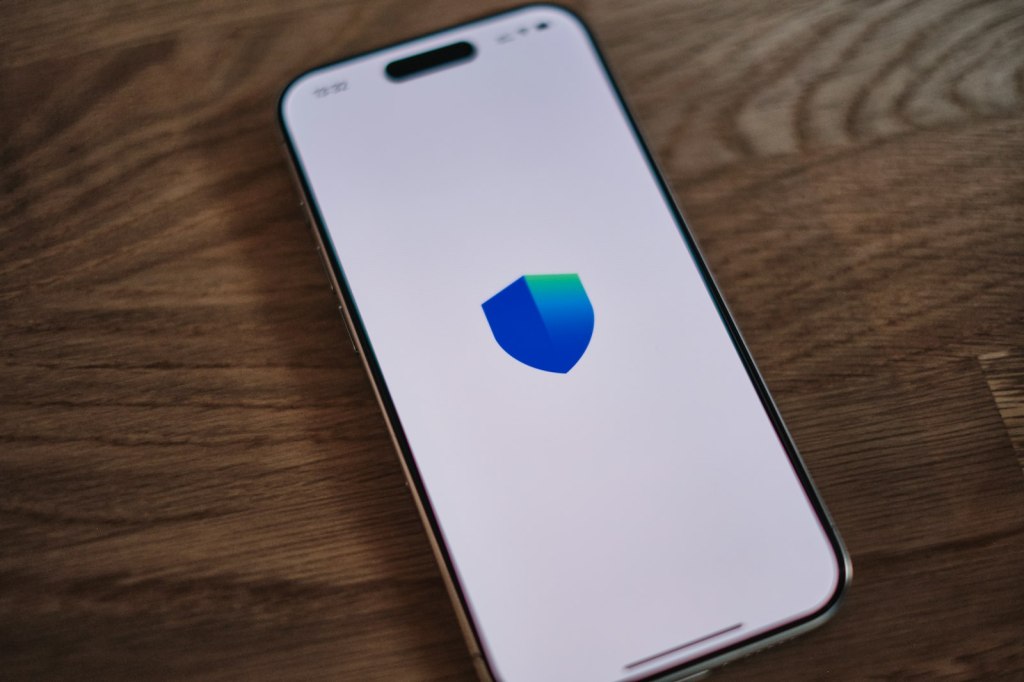
Apple describes Lockdown Mode as an optional, extreme protection for the very small number of people who may be personally targeted by sophisticated digital threats, such as mercenary spyware. It works by shutting off the features attackers most often use to break into a phone, like message attachments, complex web code and unexpected connections. The trade-off is that some apps, websites and features work differently or not at all.
What it blocks
- Messages: Most attachment types are blocked except certain images, video and audio. Links and link previews don’t work.
- Web browsing: Some complex web technologies are blocked, so some sites load slower, look broken or show missing images and fonts.
- FaceTime: Incoming calls are blocked unless you’ve called that person in the past 30 days. SharePlay and Live Photos are off.
- Invitations and sharing: Incoming invitations to Apple services (like the Home app) are blocked unless you’ve invited that person before. Shared albums are removed, and location data is stripped from photos you share.
- Wired connections: Your iPhone must be unlocked to connect to accessories or computers. That makes it harder for someone to plug into a phone they’ve taken from you.
- Wi-Fi: Your phone won’t automatically join non-secure (open) networks, which matters in airports, cafés and hotels.
- Cellular: 2G and 3G are turned off. Older networks are easier to spoof with fake cell towers.
- Configuration profiles: Profiles can’t be installed, and the phone can’t be enrolled in device management.
Regular phone calls, plain-text messages and emergency features like SOS still work. One quirk to know: incoming calls won’t ring on a paired Apple Watch.
Why we use it when we travel
We switch on Lockdown Mode before trips to countries with questionable civil liberty protections. On those trips we’re often on unfamiliar networks, receiving messages from people we don’t know, and handing our phones through security checks. Lockdown Mode shrinks the ways someone could get into the phone without our help. The features we lose, like link previews and shared albums, are easy to live without for a week or two.
Keep expectations realistic. Lockdown Mode makes remote hacking much harder, but it isn’t a VPN, it doesn’t hide your browsing from the network you’re on, and it can’t stop anyone from asking you to unlock your phone. Pair it with a reputable VPN and a travel eSIM (see our iPhone Duo and eSIM guide) and keep sensitive data you don’t need off the phone.
How to turn it on
- Update to the latest version of iOS first. Lockdown Mode needs iOS 16 or later, and Apple added more protections in iOS 17.
- Go to Settings > Privacy & Security > Lockdown Mode and tap Turn On Lockdown Mode.
- Confirm, choose to restart, and enter your passcode.
- Repeat on every device you’re bringing. It has to be turned on separately for each iPhone, iPad and Mac (on a Mac: System Settings > Privacy & Security). Turning it on for your iPhone also covers a paired Apple Watch.
Tip: Turn it on a few days before you leave, while you’re still home. That gives you time to see which apps and sites you rely on (airline, hotel and banking apps, for example) behave differently.
Making exceptions
If a trusted website or app doesn’t work, you can exclude it. In Safari, open the page menu, choose Website Settings and turn off Lockdown Mode for that site. You can manage excluded sites and apps under Settings > Privacy & Security > Lockdown Mode. Apple warns that every exception lowers your protection, so keep the list short and remove exceptions when you get home.
Our take
For most trips, you don’t need Lockdown Mode. For travel to countries where the rule of law and civil liberties are shaky, it’s one of the best free protections you can add, and it takes two minutes to turn on. Expect a few broken web pages and missing message previews. For us, that’s a small price for the peace of mind.
Features and requirements are as of October 2026 and can change with software updates. Check Apple’s support page before you travel. Points Capital does not use affiliate links on this page.
Source: Apple Support: About Lockdown Mode.